This section explains the paste panel and its functionality.
How to copy and paste
Selecting a feature will enable the copy icon in the top right of the client interface.
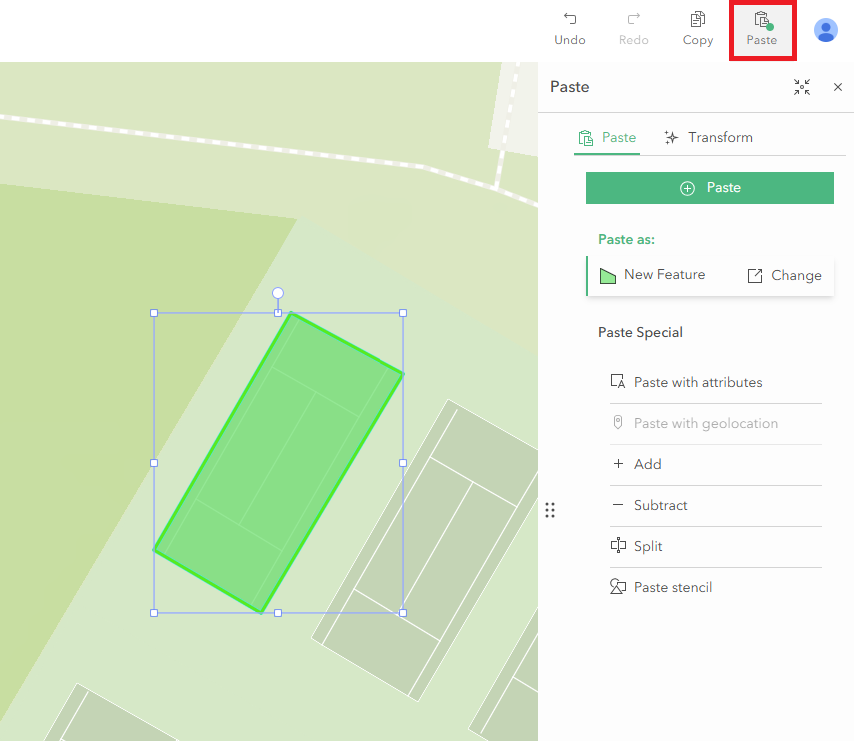
Click the copy button on the selected feature, then click on the paste icon to open up the paste panel.
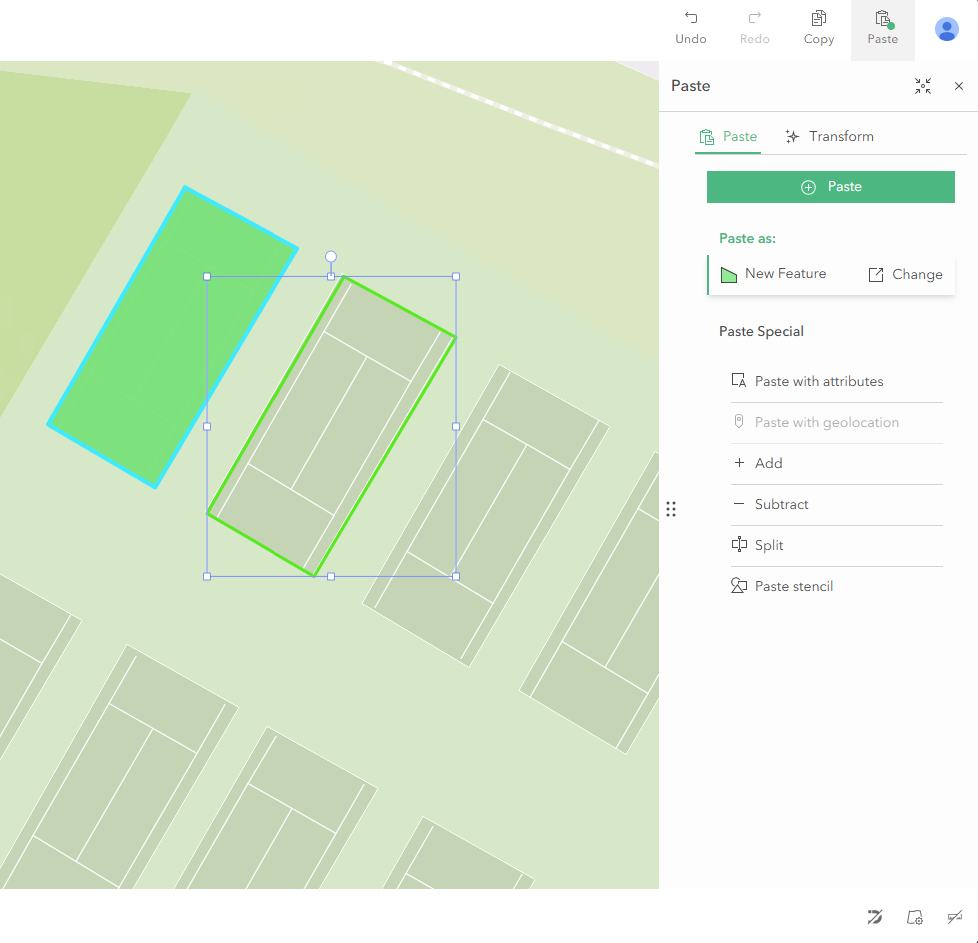
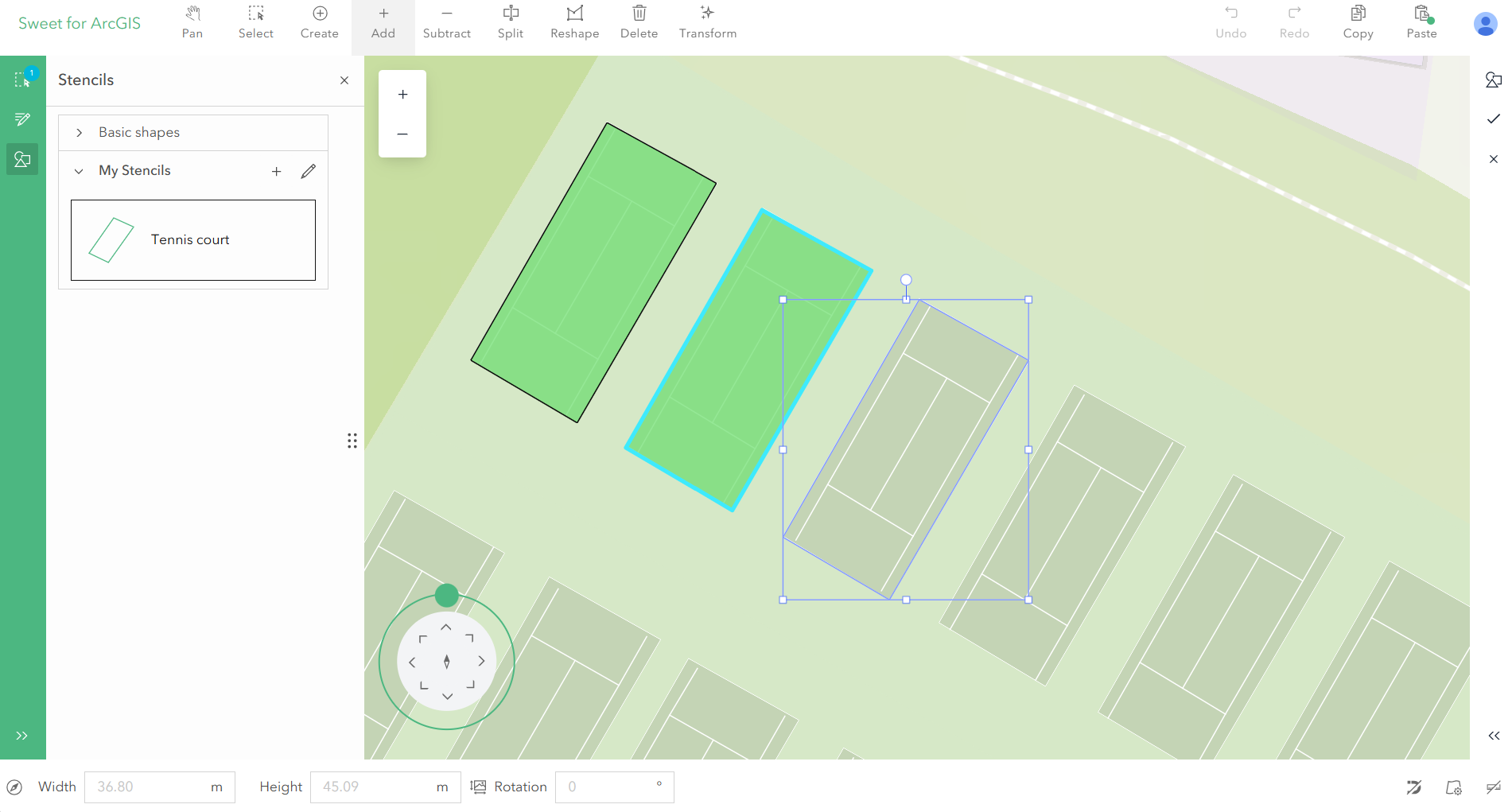
Now a target feature will appear on top of the copied feature. This target can be moved, resized and rotated.
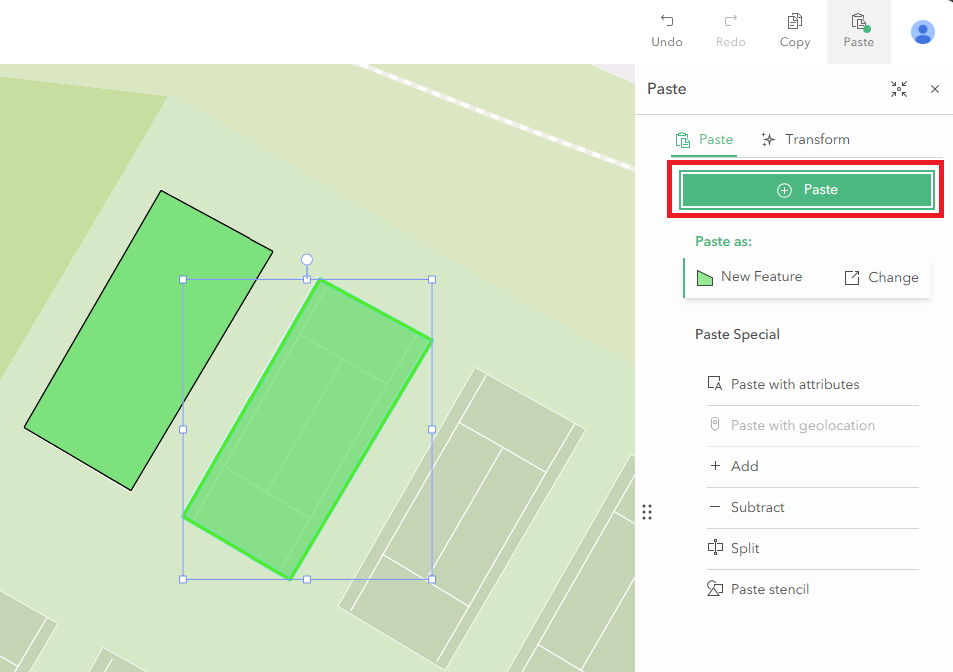
When positioned correctly, hit the paste icon to create the target feature.
Changing template
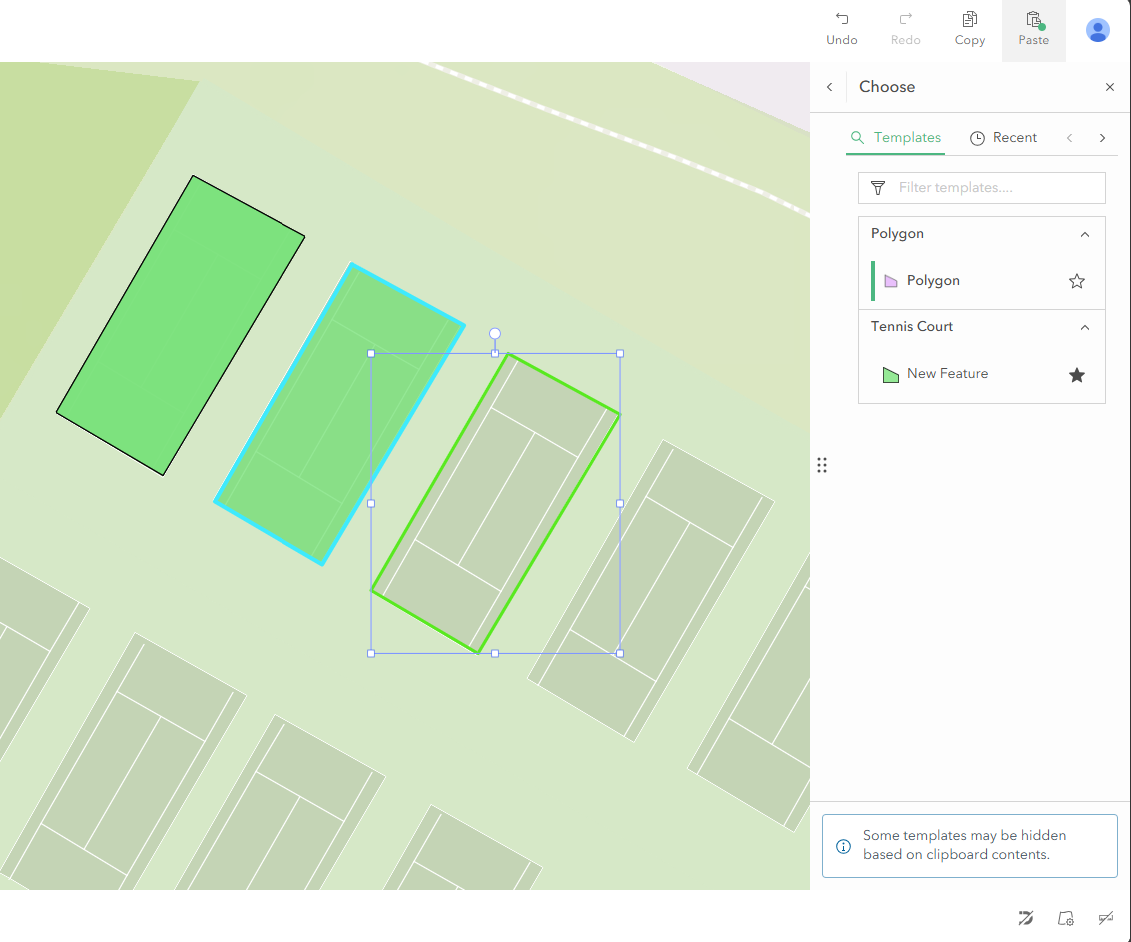
It is possible to change the paste target feature template. To do this, click on the Change icon in the Paste as section. This will open up the choose panel directly.
Sweet will only show feature templates that match the geometry type of the content copied to the clipboard.
In this example, the Tennis Court feature was originally copied. As a result, the feature template list only displays other polygon layers. Point and line features are not available.
Selecting a different feature template will then update the contents of the paste panel.
Paste Specials
It is possible to perform a number of paste specials including:
Paste with attributes – Paste will apply the attribute values to the new feature. When using on features in different layers, shared field names will be applied.
Paste with geolocation – Paste using the GPS location of the user.
Add – Add to an existing feature.
Subtract – Subtract from an existing feature.
Split – Split an existing feature.
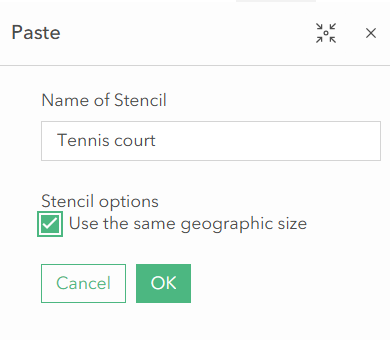
Paste stencil – Create a stencil from a copied feature.
Provide a name for the stencil and select/de-select the stencil options. Click OK.
The stencil will then appear in the stencils menu to use.
Multiple selections
Note: It is not possible to paste multiple features with differing geometry types. Paste outputs are single features and therefore require multipart topology to be enabled if attempting a multi-selection copy and paste. For this reason, it is also not possible to paste multiple point features. Sweet does not currently support the Multipoint geometry type.
If selecting multiple features and copying to the clipboard:
Paste – the paste operation will output a single feature.
Paste with attributes – the paste operation will output a single feature with the attribute values applied only to those that are shared. Non-shared values will be left empty.
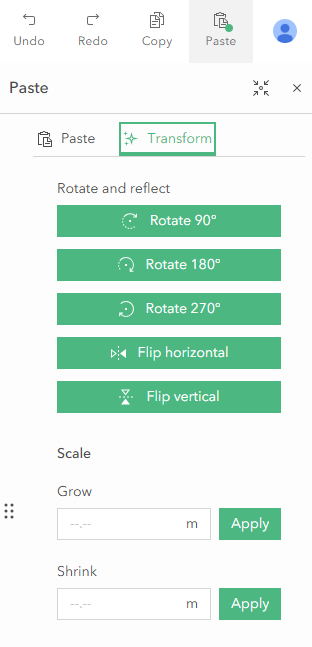
Transform
The transform tab in the paste panel allows users to perform further operations on the target paste feature including the ability grow/shrink features.